

Getting started
Getting started with restaurant inventory software: your first week with Wox
A practical launch plan for your first location: who owns what, the order to set things up in, and how to tell that the system is ready for a real service.

Most restaurants that move to inventory software are not starting from nothing. They are moving from a notebook, a spreadsheet the owner updates on Sunday nights, and a chef who knows by heart how much cheese is in the walk-in. The goal of the first week is not to replace all of that at once. It is to get one location running cleanly on one set of data, so that the second week is easier than the first.
This guide is for teams setting up Wox for the first time. It covers who should own setup, the order to do things in, and what a working system looks like at the end of launch week. Follow the steps in order. Most rework during onboarding comes from doing them out of sequence.
When to use this guide
- You are setting up your first location and want a reliable workflow from day one.
- You are moving from spreadsheets and want clear ownership from the start.
- You need a short checklist to confirm the core workflows are live before you rely on them.
Before you start: decide who owns what
Setup goes fastest when three people know their part before anyone enters data. In a small café these may be the same person. In a larger restaurant they rarely are.
- Account owner: confirms company details, who pays the bill, and the standards everyone else follows, such as naming and units.
- Operations manager: sets up locations, storages and receiving routines, and owns launch week from start to finish.
- Shift leads: follow the launch checklist on the floor and report anything that is missing or confusing.
Step 1: organisation and first location
When you first sign in, Wox asks for two things before anything else: your organisation and your first location. Everything after that can be done progressively, at your own pace, and the app is usable while you work through it.
- 1Add your organisation details, the time zone you operate in and your primary contacts.
- 2Create your first location with its address, and write down receiving instructions: when deliveries are accepted, where they go, and who checks them.
- 3If you run more than one venue, set up the first one completely before adding the next. The multi-location guide covers the rest.
The time zone matters more than it looks. It decides where one business day ends and the next begins, which is what your daily sales and reports are built on.
Step 2: storages, categories and units
Storages in Wox should match the physical places where stock is kept: the dry store, the walk-in, the freezer, the bar. If your team says go and check the cold room, there should be a storage called cold room. Categories group items the way you think about them, such as meat, dairy, vegetables, wine and packaging.
- 1Create the core storages your team uses every day, named the way the team already talks about them.
- 2Create item categories for the main groups of products you buy.
- 3Add your most important items first, typically the twenty to forty products that make up most of your spending.
- 4Standardise units and pack sizes for those items before any live deliveries, for example whether flour is counted in kilograms or in 25 kg sacks.
 Wox
WoxInventory Count
Walk-In Cooler · Downtown
Units are the setting that causes the most trouble later, so it is worth slowing down here. Recipe costing, par levels and stock counts all depend on Wox knowing what one unit of an item means.
Step 3: connect rs.ge
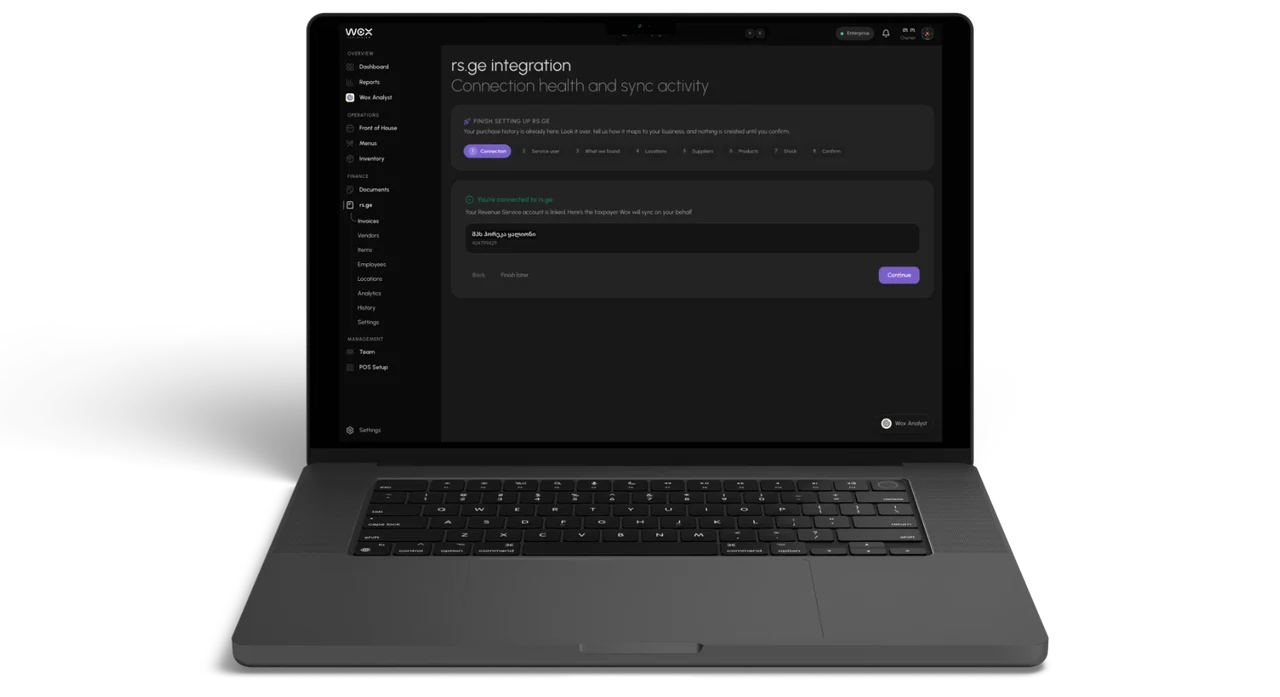
Most deliveries in Georgia come with an electronic waybill on rs.ge, and connecting it is the quickest way to fill Wox with real suppliers, items and prices. The step is optional and can be skipped during setup and done later.
- 1Connect your rs.ge account from the setup flow or the rs.ge integration settings.
- 2Wait for the first import. Wox brings in twelve months of waybill history and then syncs every night.
- 3Review the suppliers and items Wox proposes. Merge duplicates and match products to the items you created in step 2.
- 4Confirm the deliveries you want to count as opening stock. Nothing posts to stock until you have reviewed it.
Step 4: invite your team
Everyone who uses Wox should have their own account. Shared logins make it impossible to see who did what, and they are the first thing to go wrong when someone leaves.
- 1Invite managers first, with a manager role, so they can help with the rest of setup.
- 2Invite staff with roles that match their work, so each person sees only the workflows they own.
- 3Set a personal PIN for each person who will use the POS.
- 4Ask managers and owners to turn on multi-factor authentication. See security and authentication.
The guide on team roles and permissions explains what each role can see and do.
Step 5: one real delivery and one invoice
Before you rely on the system, run one real delivery through it from start to finish. Choose something low-risk: a regular supplier, a short list of items, a day without a big event.
- 1Receive one low-risk delivery end to end. For most venues in Georgia this is an rs.ge waybill: open the draft, check quantities and prices against what arrived, and confirm it so the stock lands in the right storage.
- 2Upload one supplier invoice, check the lines Wox extracts from it in the preview, correct anything that was read wrongly, and import it.
- 3Open the items from that delivery and the reports, and check that quantities and costs are what you expect.
One delivery checked properly in the first week saves a month of numbers nobody trusts.
After launch week: menu and recipes
Inventory is most useful once sales move it. When each menu item has a recipe linked to its ingredients, every sale on the POS deducts those ingredients from stock, and food cost follows on its own. You can build the menu by hand, or upload an existing menu document and correct the result in a preview before importing it. The recipe costing guide shows how to link recipes to items.
Once the menu exists, the QR menu is ready to publish. It is free on every plan, including Free.
What good looks like
At the end of launch week, you should be able to run core operations without anyone keeping a side notebook.
- Team members sign in with their own accounts and see only the workflows they own.
- Stock counts, deliveries and supplier costs are visible in one place.
- Managers can review alerts and make same-day decisions about what to buy.
Common mistakes and how to fix them
- No clear setup owner. Fix: name one operations owner for launch week.
- Inconsistent units and pack sizes. Fix: standardise your top items before the first live delivery.
- Skipping the first invoice review. Fix: check the extracted costs before you close the first period.
- Shared logins. Fix: invite every person individually, with the role that matches their work.
Where to go next
With the basics in place, the next guides are par levels, so Wox can warn you before you run out, waste tracking, so losses are recorded rather than guessed, and the mobile app for counting stock on the shop floor. If anything does not behave as expected, the troubleshooting guide is the place to start.
Questions people ask
What do I need to set up before I can use Wox?
Only your organisation and your first location. Everything else, from storages to rs.ge and team invitations, can be done progressively while you already use the app.
Do I have to connect rs.ge?
No. The rs.ge step is optional and can be skipped during setup. Connecting it is the quickest way to bring in real suppliers, items and prices, because Wox imports twelve months of waybill history for you to review.
Can we import our existing menu instead of typing it?
Yes. You can upload an existing menu document, correct what Wox extracts in a preview, and then import it as menu items.
Can we start on the Free plan?
Yes. There is a Free plan, and the QR menu is free on every plan. Paid plans start at 99 GEL a month. Wox Analyst, the AI assistant, is not included on the Free plan.
Can we add more locations later?
Yes. Set up the first location completely, then add more under the same organisation. Each location has its own stock, prices and staff.
Related guides
Restaurant Vendor Management and Catalog Setup
Build reliable vendor catalogs and item data so restaurant ordering, receiving, and food cost control stay consistent.
Restaurant Purchase Order Management
A guide to creating, sending, receiving, and reconciling restaurant purchase orders to keep food costs as a percentage of sales on target.
Restaurant Inventory Counting and Stock Management
Best practices for restaurant inventory management — storages, counts, low-stock control, and replenishment planning to reduce food cost.
Background reading
10 Restaurant Numbers Owners Should Review Every Week
A simple scorecard for margin, labor, menu, and operating discipline
5 Reasons Growing Restaurants Need One System for Inventory, Ordering, and Cost Control
Why disconnected tools create hidden labor, weak visibility, and avoidable margin loss
5 Scheduling Moves That Help You Stay Fully Staffed Without Overspending
How better scheduling protects service, morale, and labor cost at the same time
The feature behind this guide
Restaurant inventory management, simplified
How Wox helps you track food cost and reduce wastage in your restaurant