

Security
Restaurant Software Security and Authentication
Simple habits that keep a restaurant's accounts safe without slowing service: one login per person, a second sign-in factor for the people who handle money and access, clean handovers on shared devices, and a monthly look at who still has a key.
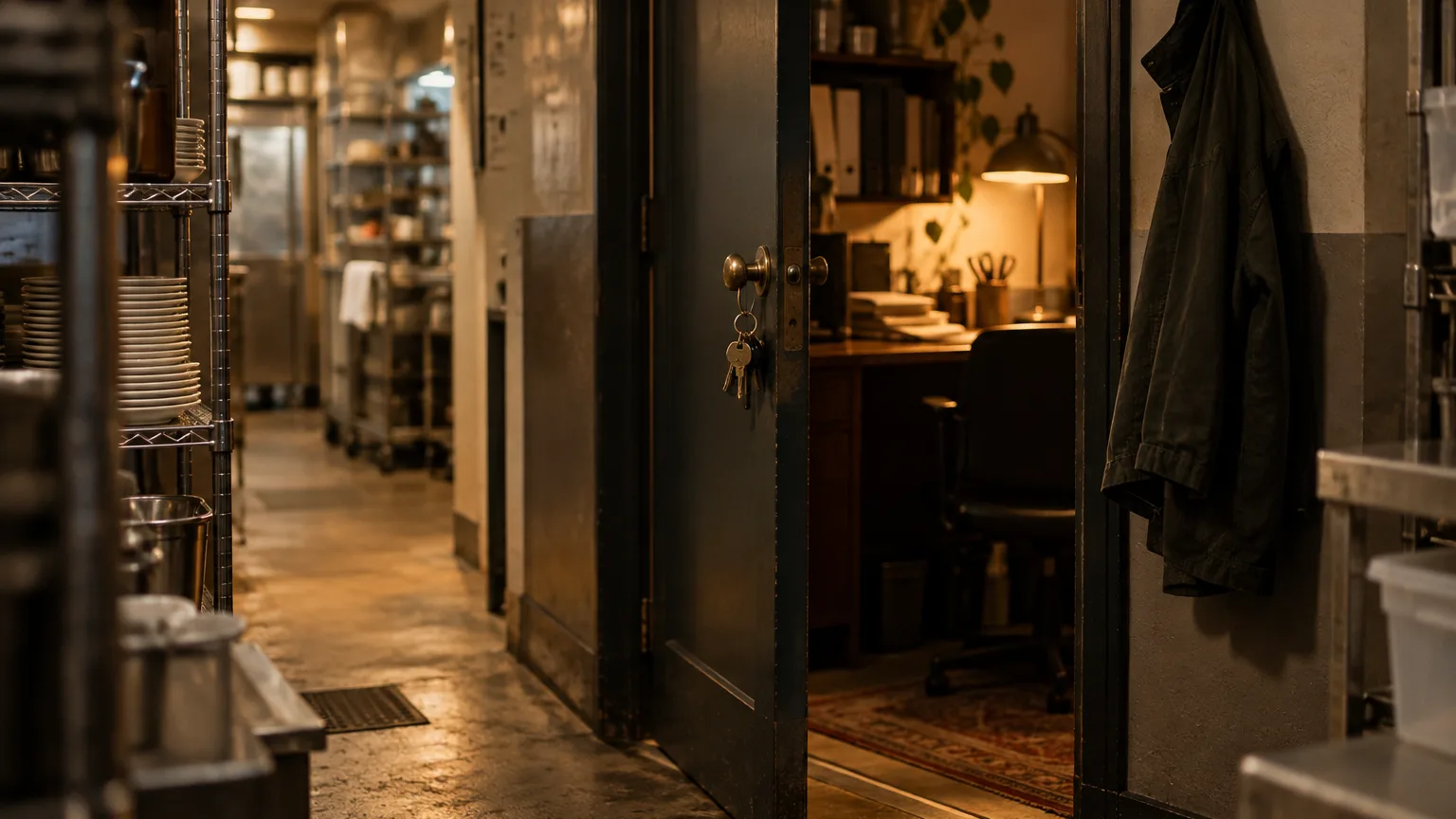
Most restaurants are careful with physical keys. The safe key stays with the manager, the office is locked at night, and when someone leaves, the keys come back. Software access tends to get less attention, even though it opens the same doors: cash reports, supplier prices, staff details and the ability to void a check.
Security in a restaurant does not need to be complicated. It needs a few habits that everyone follows on every shift. This guide sets out those habits and shows where each one lives in Wox.
Decide who owns access
Before changing any settings, agree who is responsible for what. In a single cafe this may be one owner. In a group with several locations it is usually spread across a few people.
- Account admins set the access standards, manage roles and run the monthly access review.
- Managers coach the team on sign-in habits and make sure shared devices are handed over cleanly.
- Staff follow the sign-in rules and report repeated lockouts or strange behaviour straight away.
One person, one account
Shared logins are the most common security problem in hospitality. A single bar login used by four bartenders means nobody can tell who voided a round, who gave a discount or who opened the drawer. It also means that when one of them leaves, the password has to change for everyone, so in practice it never does.
In Wox every team member gets their own account through an invitation, and their role decides what they can see and do. On the POS, staff sign in with their own four-digit PIN. Actions that move money, such as voids, discounts, comps, paid-outs and opening the drawer without a sale, ask for a manager's PIN on top of that, so the record shows both who did it and who approved it.
 Wox
WoxTeam
5 members · 3 locations
Alex K.
alex@downtown.com
James R.
james@midtown.com
Maria S.
maria@downtown.com
Sam P.
sam@downtown.com
Nina T.
nina@midtown.com
When everyone shares a login, nobody is accountable, and the password never changes.
Use strong passwords and a second factor
A strong password is long, unique and not reused from email or social media. That alone is not enough for the people whose accounts can change prices, see payroll or manage billing. For owners, admins and managers, add a second factor so a stolen password is not enough to get in.
Wox offers several options on the Security page of each person's account. Each user turns them on for their own account, so make it a rule for sensitive roles rather than a suggestion.
- An authenticator app, such as Google Authenticator or Authy, which shows a six-digit code at sign-in.
- SMS codes sent to a verified phone number.
- A verification code sent by email at sign-in.
- Passkeys, which let you sign in with your fingerprint, face or the device's screen lock instead of a password.
- Backup codes for when the phone with the authenticator app is lost. These become available once another factor is turned on.
- 1Sign in to Wox on the web and open Security from your account menu.
- 2Under Authenticator app, choose to set it up, scan the QR code with the app on your phone, and enter the six-digit code to confirm.
- 3Generate backup codes, store them somewhere safe away from your phone, and confirm you have saved them. They are shown only once.
- 4If you prefer SMS as well, verify your phone number first, then enable SMS two-factor authentication.
- 5Optionally add a passkey for each device you use regularly, named so you recognise it later, for example office laptop.
- 6Ask every owner, admin and manager to complete the same steps, and check at the next team meeting that it is done.
Hand over shared devices cleanly
A tablet at the host stand or a laptop in the office is often used by several people in a day. The risk is simple: someone starts their shift and works under the previous person's account without noticing.
The POS is built for this. When the app is reopened it always returns to the PIN screen, so the next person signs in as themselves, and finishing the closing wizard ends with a return to login. If the internet drops, a terminal can still accept a PIN for staff who have signed in online on that terminal within the last 24 hours, and five wrong attempts lock offline PIN entry for 15 minutes.
- 1At shift handover, sign out of the web app on any shared laptop or tablet before leaving it.
- 2On the POS, make sure the outgoing staff member has signed out and the next person signs in with their own PIN.
- 3Close the browser on shared office computers at the end of the day.
- 4Never save personal passwords in the browser of a shared device.
Review access every month
Staff turnover in hospitality is high, and access tends to outlive employment. A seasonal waiter from last summer in Batumi should not still be able to open the app in November. A monthly fifteen-minute review closes that gap.
- 1Open Team and go through the list of members at each location.
- 2Remove anyone who no longer works for you. This removes their access to your workspace.
- 3Revoke any invitations that were never accepted.
- 4Check that each person's role still matches their job, especially after promotions or moves between locations.
- 5Confirm that at least two people hold the owner or admin role, so access can be managed when one is away.
- 6Write the date of the review down so the next one happens on time.
Roles themselves are covered in detail in team roles and permissions. Wox will not let you remove or demote the last active owner of a workspace, so there is always someone who can manage it.
When something looks wrong
If you think a password has been seen by someone else, change it straight away. Changing your password signs out every existing session for your account, on every device. Then check your second factors and remove any passkey or device you do not recognise.
- 1Change the password for the affected account from the account settings.
- 2Open Security and review your authenticator, SMS, email, passkeys and backup codes; remove anything you do not recognise.
- 3Ask an admin to check the person's role and remove access if needed.
- 4If lockouts or forced sign-outs keep happening, contact support with the account email, the device and browser, the time it happened and the exact message shown.
What good looks like
- Every person who uses Wox has their own account, and no one shares a PIN.
- Owners, admins and managers all use a second sign-in factor.
- Leavers lose access on their last day, not months later.
- Access reviews happen on a schedule rather than after an incident.
Security habits support the rest of the operation. For how roles map to screens and actions, see the team feature, and for help with sign-in errors, see troubleshooting.
Questions people ask
Does Wox support two-factor authentication?
Yes. Each user can turn on an authenticator app, SMS codes, email verification codes or passkeys from the Security page, and generate backup codes once another factor is active.
Should staff share a login on the POS?
No. Each staff member signs in to the POS with their own PIN, and sensitive actions such as voids, discounts and paid-outs need a manager's PIN as well. Shared logins make it impossible to tell who did what.
What happens to my other sessions when I change my password?
Changing your password signs out all existing sessions for your account on every device, so anyone using an old password is logged out.
Can staff sign in to the POS when the internet is down?
Yes, if they have signed in online on that terminal within the last 24 hours. Five wrong PIN attempts lock offline sign-in for 15 minutes. First-time sign-in on a terminal needs a connection.
Related guides
Restaurant Team Roles and Permissions
How to set restaurant team access so daily work is fast while sensitive actions like food cost data and purchasing stay controlled.
Troubleshooting Common Restaurant Operations Issues
A practical troubleshooting guide for common restaurant account, ordering, invoice processing, and inventory communication issues.
Getting Started with Restaurant Inventory Software
A practical onboarding guide for operators launching restaurant inventory management software across one or more locations.
Background reading
10 Restaurant Numbers Owners Should Review Every Week
A simple scorecard for margin, labor, menu, and operating discipline
5 Reasons Growing Restaurants Need One System for Inventory, Ordering, and Cost Control
Why disconnected tools create hidden labor, weak visibility, and avoidable margin loss
5 Scheduling Moves That Help You Stay Fully Staffed Without Overspending
How better scheduling protects service, morale, and labor cost at the same time
The feature behind this guide
Team roles and permissions for multi-location restaurants
Role-based access, multi-location controls, and secure authentication for restaurant teams