

Security, integrations & help
Troubleshooting Common Restaurant Operations Issues
A calm order of checks for the moments when sign-in, the POS, documents or rs.ge waybills stop behaving, and how to hand support a case it can solve on the first read.

It is half past eight on a Friday in Tbilisi. The dining room is full, a new waiter cannot sign in, and the kitchen manager says yesterday's delivery is not in stock. Three people are trying three different fixes at once, and nobody has written down what actually went wrong.
This guide is the order we recommend for working through problems like these. It starts with the cheap checks that solve most cases, moves to the specific parts of Wox that can stall, and ends with how to escalate so support can act without a long back-and-forth.
Give the problem one owner
The slowest incidents are the ones everybody touches. Before anyone changes a setting, decide who owns the problem for this shift. Usually that is the shift manager, because they can judge how much the issue is hurting service and they can tell staff what to do in the meantime.
The owner does not need to fix everything personally. Their job is to collect the facts, decide the next check, and keep one running note that anyone can read later.
- 1Name one person as the incident owner and tell the team who it is.
- 2Write down the time the problem was first noticed, to the minute.
- 3Take a screenshot or a photo of any error message before closing it.
- 4Note the last step that worked, for example the last order that printed or the last waybill that appeared.
- 5Find out how wide the problem is: one person, one device, one location, or everyone.
That last question narrows things quickly. If one waiter cannot sign in but everyone else can, the cause is almost never the system as a whole. If every terminal in the building went quiet at the same moment, look at the internet connection before anything else.
Check access before anything else
A surprising share of problems are really access problems. Someone is signed in to the wrong location, their role does not include the screen they need, or their second sign-in factor is on a phone they left at home. These are quick to rule out, so rule them out first.
- 1Confirm the person is signing in with the email address their account was created with.
- 2If two-step sign-in is turned on, check that the authenticator app shows a current code and that the phone's clock is set automatically.
- 3If the phone is not available, use one of the backup codes saved when two-step sign-in was set up, or a registered passkey.
- 4After sign-in, check the organization and location shown in the app. Switch location if they landed in the wrong one.
- 5If a screen or button is missing, ask an owner or admin to check the person's role and permissions for that location.
Permissions in Wox are set per role and can differ between locations. A shift lead who can close a day in Vake may not have the same rights in the Saburtalo branch. The guide to team roles and permissions explains how to read and change them, and security and authentication covers two-step sign-in and passkeys.
When the POS loses the internet
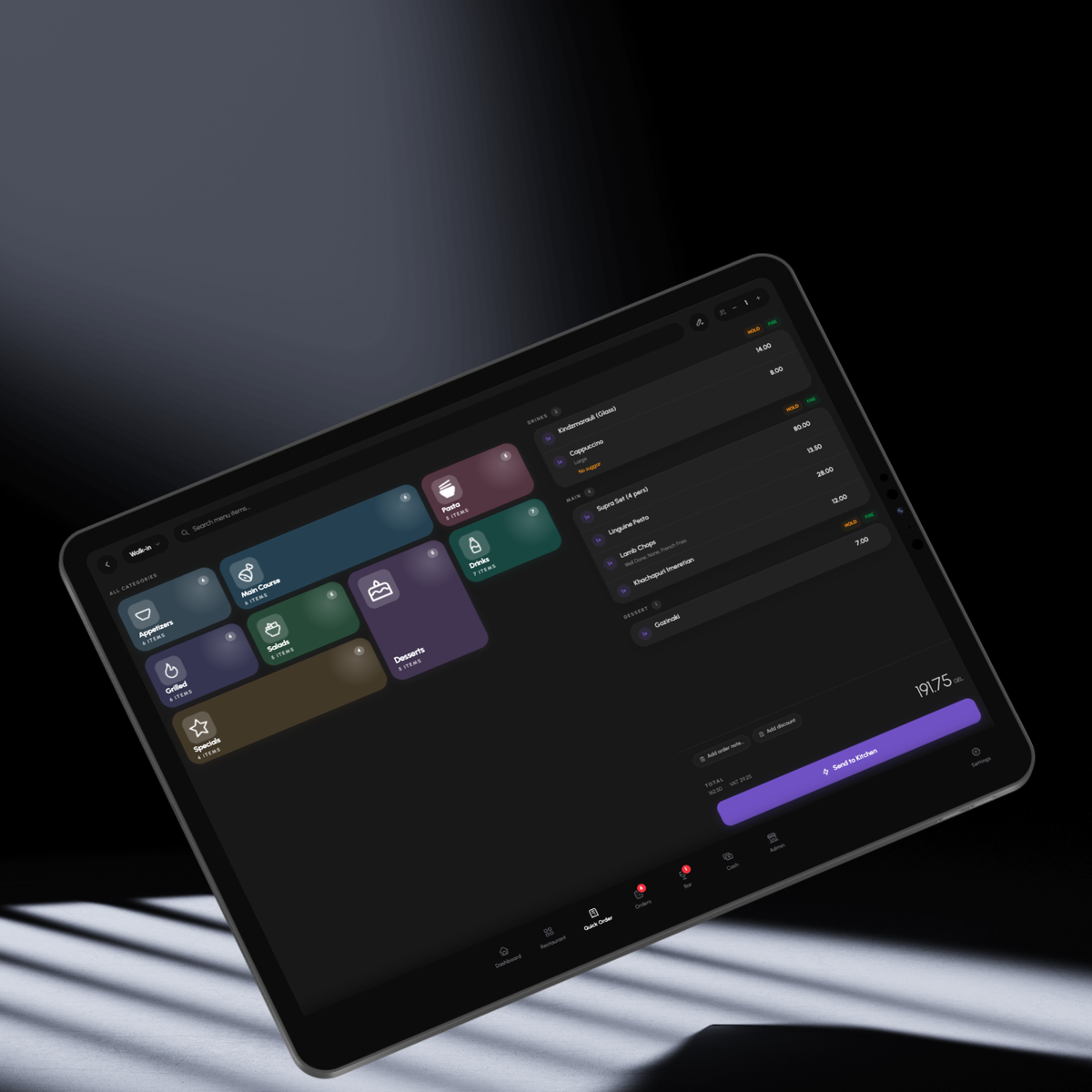
The Wox POS is built to keep working through an internet outage. Orders can still be taken and sent, and the terminal syncs with the server when the connection returns. The important thing during an outage is to keep serving and avoid anything that could throw away work that has not synced yet.
- 1Check whether other devices in the building can reach the internet, to confirm it is the connection and not the terminal.
- 2Keep taking orders on the POS as normal and tell the team the restaurant is working offline.
- 3Do not uninstall the app, clear its data or sign out of the terminal while it is offline.
- 4Restart the router or switch to a backup connection if you have one.
- 5When the connection returns, leave the terminal open until it finishes syncing, then check that recent orders appear on the other devices.
Invoices and documents that will not read
When you upload an invoice or a supplier document, Wox processes it in the background and shows its status. A document can finish, fail, or be marked as needing review when some fields could not be read with confidence. A failed document can be retried, and one that needs review simply waits for a person to check it.
- 1Open the document and look at its status before uploading it again.
- 2If it needs review, check the highlighted lines, correct quantities, units or prices, and save.
- 3If it failed, retry it once from the document view.
- 4If it fails again, re-photograph the page flat, in good light, with all four corners visible, or upload the original PDF instead.
- 5If a clean PDF still fails, keep the file and the time of the upload for your support ticket.
rs.ge waybills that seem to be missing
When you connect rs.ge, Wox imports twelve months of Revenue Service waybill history and then syncs every night. Wox proposes the matching suppliers and items, but nothing posts to stock until someone reviews it. So a waybill that is missing from stock is often sitting in the review queue rather than lost.
- 1Check the waybill date. A waybill issued today normally arrives with the next nightly sync.
- 2Open the rs.ge review queue and look for the waybill there before searching stock.
- 3Confirm the proposed supplier and item matches, fix any that are wrong, and approve the waybill so it posts to stock.
- 4If the waybill is in neither place after the nightly sync, check that the rs.ge connection is still active in settings.
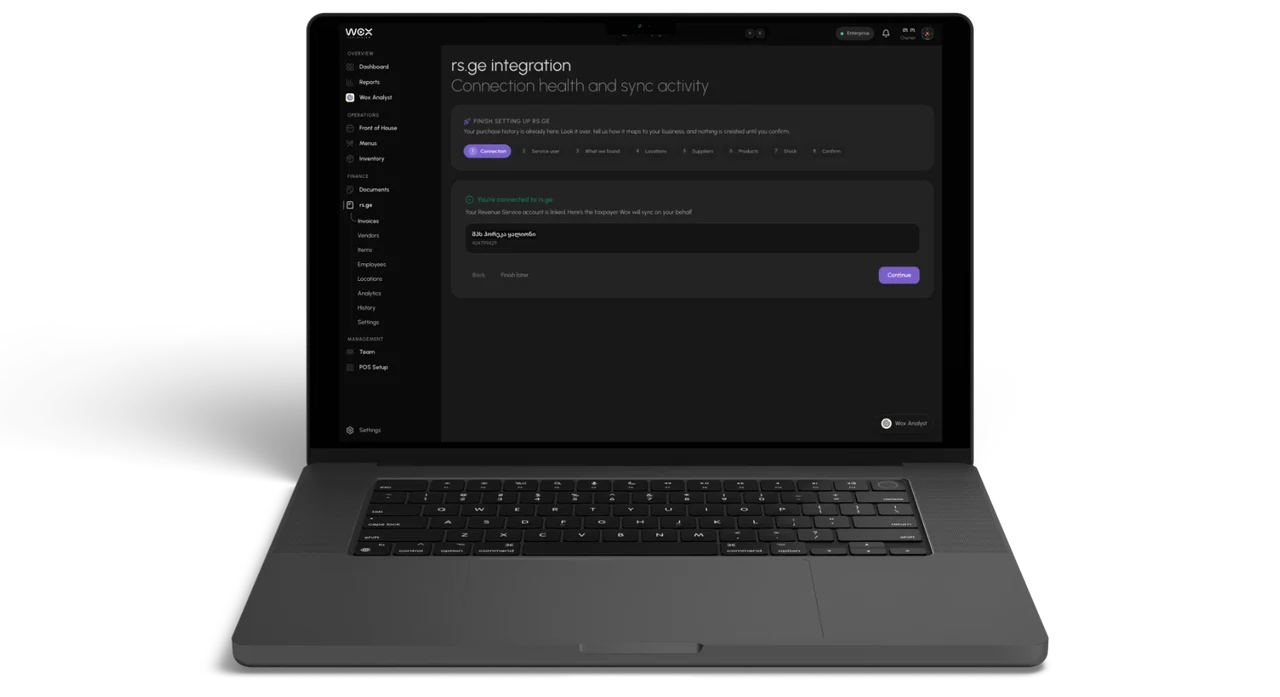
More on the connection itself is on the rs.ge integration page. If a supplier's phone number or email is wrong in Wox, fix it on the supplier record, as described in vendor management, so the next person who needs to call them does not lose time.
When parts of the account are restricted
If a payment fails or a plan limit is reached, some parts of the workspace can be restricted until billing is sorted out. Support stays reachable in that state, so you can always open a ticket. The steps for recovering are in billing, limits and recovery.
Escalate with a complete ticket
A ticket with a time, a screenshot and the last step that worked is usually solved faster than three tickets that say it is broken.
Support tickets are opened from inside the Wox web app. Each ticket gets a number, a status, and a reply thread, and you are notified when support answers.
- 1Open Support in the Wox web app and choose the category that fits best, such as Billing for payment problems.
- 2Write a subject that names the problem and the location, for example "Waybills from 3 October not in review queue, Batumi".
- 3In the message, give the time it started, how many people or devices are affected, and the last step that worked.
- 4Attach your screenshots or the problem file. You can add up to five files of up to 10 MB each.
- 5Submit, note the ticket number in your incident note, and reply in the same ticket if anything changes.
Common mistakes
Jumping straight to fixes is the most common one. Reinstalling an app or changing settings before writing down what happened can destroy the evidence that would have explained it. Follow the check order, even when it feels slow.
The second is unclear ownership. Two managers who each assume the other has opened a ticket can lose an evening that way. One owner, one note, one ticket.
Questions people ask
What should I check first when something stops working in Wox?
Start with access: the right account, the right location and the right role. Then find out whether the problem affects one person, one device, one location or everyone. That usually points to the cause before any deeper checks.
Can the restaurant keep selling if the internet goes down?
Yes. The Wox POS keeps taking orders offline and syncs when the connection returns. Avoid uninstalling the app, clearing its data or signing out while it is offline.
Why is an rs.ge waybill not showing in my stock?
Waybills sync nightly and wait in a review queue until someone confirms the supplier and items. Check the review queue first; nothing posts to stock until it is reviewed.
What should a support ticket include?
The time the problem started, who or what is affected, the last step that worked, and screenshots or the problem file. Tickets accept up to five attachments of up to 10 MB each.
Can I contact support if my account is restricted for billing?
Yes. Support remains available when billing is inactive, so you can open a ticket and choose the Billing category.
Related guides
Restaurant Software Security and Authentication
Security guidance for restaurant account protection, safe access practices, and session reliability across your team.
Billing, Plan Limits, and Account Recovery
A guide to understanding plan limits and resolving account access interruptions in your restaurant operations software.
Low-Stock Alerts and Restaurant Notifications
How to configure low-stock alerts, order cutoff reminders, and notifications to stay ahead of restaurant inventory and purchasing needs.